How Do I Get My Resume From LinkedIn?
You don’t need to write a resume from scratch — LinkedIn will generate one from your profile in about a minute, for free. Here’s exactly where the hidden “Save to PDF” button lives and what to do with the file once you have it.
- 1
Open LinkedIn on a desktop computer
Go to linkedin.com in a desktop browser (Chrome, Safari, Edge, or Firefox) and sign in. The Save to PDF feature only exists on the desktop site — the mobile app and mobile web won’t show it.
- 2
Go to your own profile
Click the "Me" button with your photo in the top-right navigation bar, then choose "View Profile". You can also go straight to linkedin.com/in/me — it jumps to your own profile automatically.
Open my LinkedIn profile - 3
Click "Resources", then "Save to PDF"
On your profile’s intro card (the box with your name and headline), click the "Resources" button — on some accounts it’s labeled "More". A dropdown opens: choose "Save to PDF".
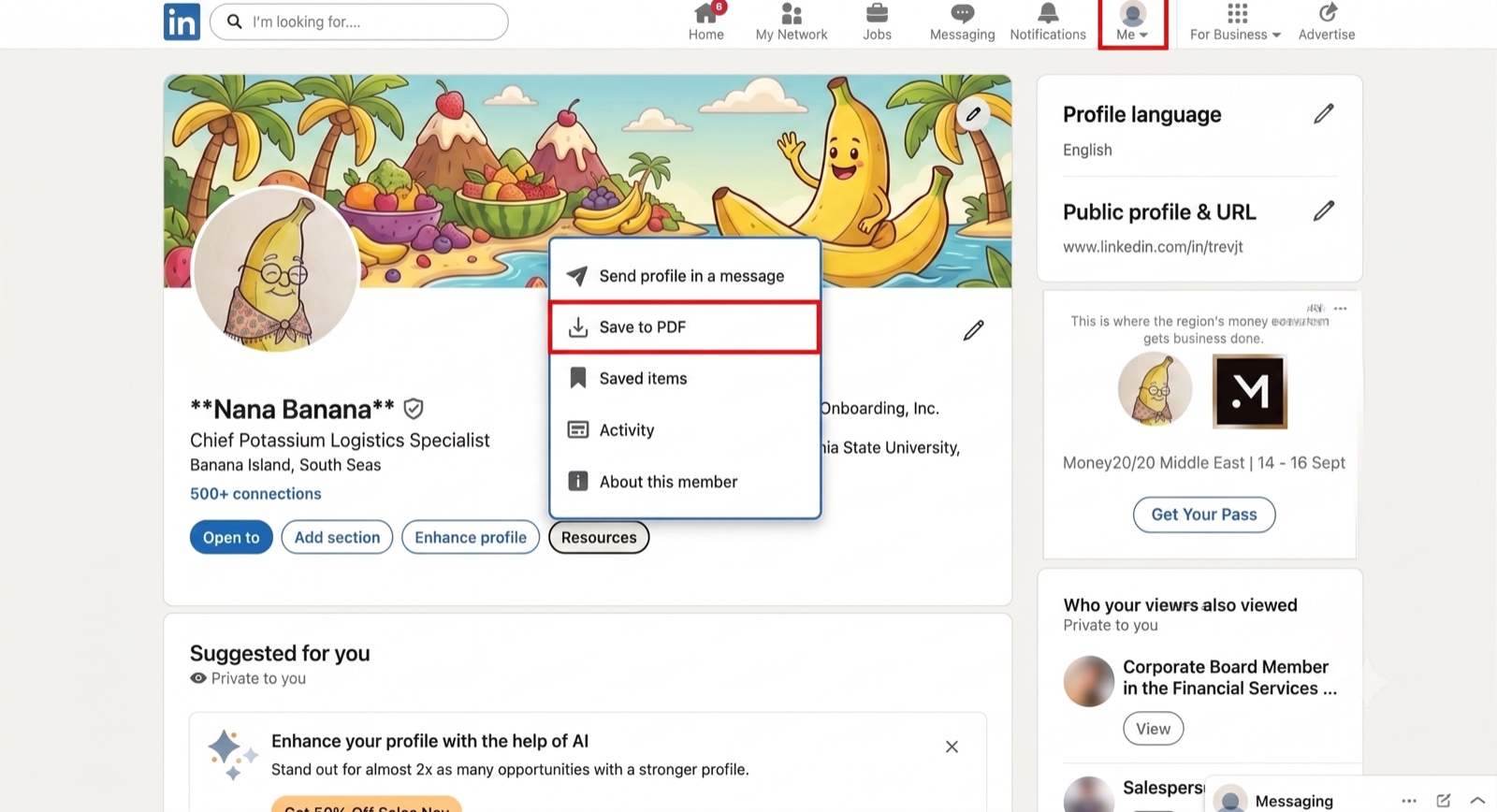
Your profile → Resources → Save to PDF — the two spots to click are boxed in red. - 4
Grab the downloaded PDF
LinkedIn generates a PDF of your profile — headline, About, Experience, Education, Skills, and Certifications — and downloads it to your computer, usually as "Profile.pdf" in your Downloads folder.
- 5
Upload it wherever a resume is needed
Use the PDF as your starting resume anywhere — including Higher Income, where uploading it unlocks AI job matching, resume tailoring, and salary analysis for free.
Good to know before you export
- It’s completely free — no LinkedIn Premium required.
- Your profile is the resume — the PDF includes whatever is on your profile, so fill in your Experience and About sections first for a stronger result.
- English profiles only — LinkedIn currently offers Save to PDF only when your profile language is set to English.
- Treat the PDF as a first draft, not a final resume — it mirrors your profile’s layout, so tailor it to each job before applying (that’s the part Higher Income automates for you).
Frequently asked questions
Can I get my resume from LinkedIn on my phone?
The Save to PDF option is a desktop-only feature on the LinkedIn website. In the LinkedIn mobile app, some accounts can tap the three-dot (⋯) menu on their profile and choose Save to PDF, which emails the PDF to the address on the account — but the most reliable path is a desktop browser.
Is downloading my resume from LinkedIn free?
Yes. Save to PDF is a built-in, free LinkedIn feature available to every member — no Premium subscription required. LinkedIn does cap profile PDF downloads at around 200 per month, which is far more than anyone needs for their own profile.
I don’t see the Save to PDF button. Why?
Three common reasons: you’re on mobile (switch to a desktop browser), the button on your account is labeled "More" instead of "Resources", or your profile language isn’t set to English — LinkedIn only offers Save to PDF on English-language profiles.
Is the LinkedIn PDF a good enough resume to apply with?
It’s a solid starting point but not a finished resume. The export mirrors your profile’s layout, so it can read like a profile rather than a targeted resume. Treat it as your raw material: upload it to a tool like Higher Income to have AI restructure and tailor it to specific jobs.
Does LinkedIn notify anyone when I save my profile as a PDF?
No. Saving your own profile (or anyone else’s) as a PDF is private — no notification is sent to anyone.
Got your LinkedIn PDF? Now practise saying it out loud.
Upload it to Higher Income and a live AI interviewer will question you on what is in it, push back on anything vague, and score you at the end. Three minutes a week is free.